
Web & Design Agency
WooCommerce shortcodes offer an easy and adaptable approach to improving the usability and functionality of your online business. Their ability to effortlessly add and display functionality and information makes them invaluable to any WooCommerce store.
Because you may utilize shortcodes to customize the functionality and appearance of the content, you can also use them to build unique layouts and designs for your online store. To find out more about WooCommerce shortcodes, let’s read this article.
WooCommerce shortcodes let you quickly add specific features or content to your posts and pages. You can place the required content or functionality anywhere in the post editor using square brackets (e.g., [shortcode]).
WooCommerce shortcodes allow you to display products, categories, carts, checkout pages, and other content like customer accounts and order tracking.
Shortcodes for WooCommerce work similarly to those for other E-commerce platforms. Upon installation, the plugin offers several functionalities by automatically creating default pages with embedded shortcodes.
Shortcodes allow for more customization because they have one main body and one optional parameter segment.
As an example, if you want to show the reviews of a specific product in your WooCommerce store, you can use the shortcode:
[product_reviews id=”XYZ”]The WooCommerce shortcode’s primary body defines the core action. In this example, the primary body displays the reviews, and XYZ is the ID of your unique product.
You must install the WooCommerce shortcode plugin first. Despite the large number of online plugins, I advise selecting WooCommerce Shortcodes plugins, which allow you to use any WooCommerce shortcode.
Take the following actions to install this plugin:
- Open your admin dashboard.
- Click on Plugin → Add New.
- Type WooCommerce shortcodes in the search bar.
- Now install the plugin and activate it.
WooCommerce shortcodes are relatively simple to use. Just take these actions:
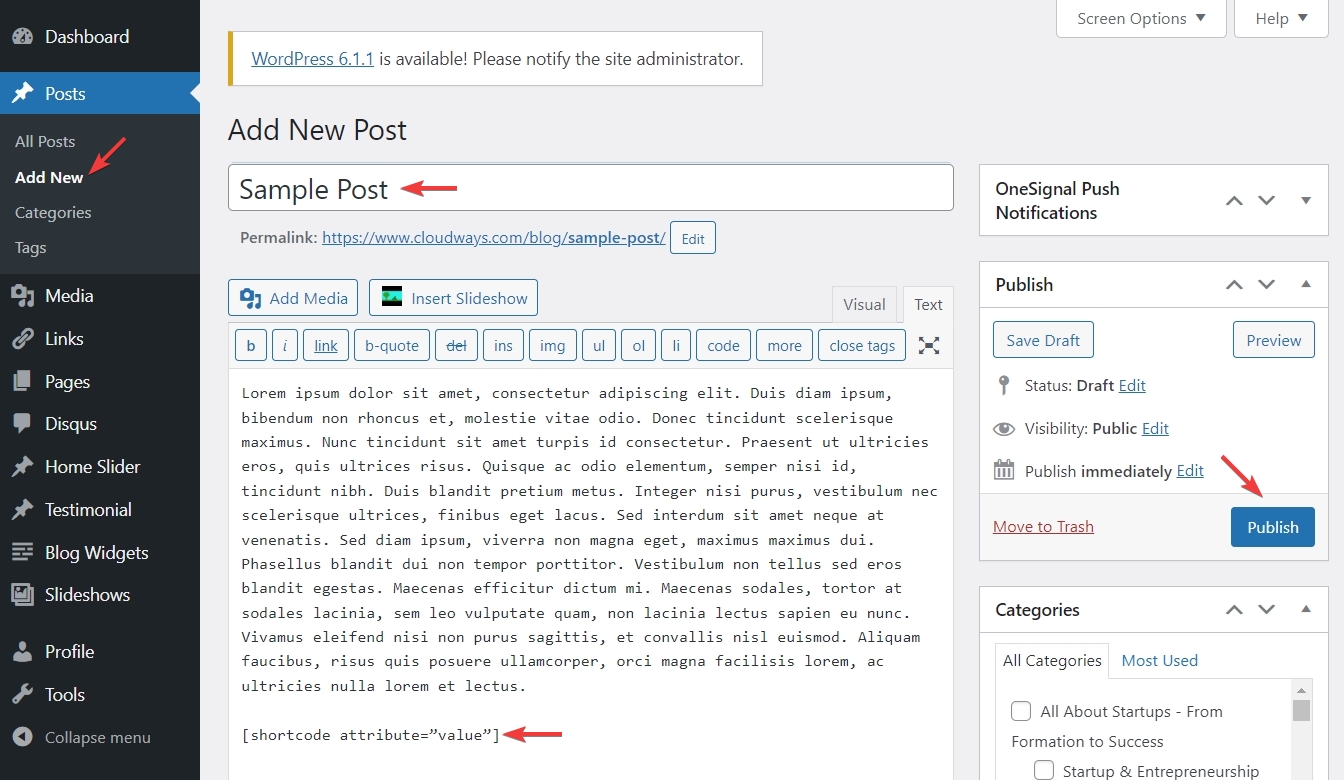
- To add the shortcode navigate to the post or product page
- Move the cursor to the desired location for the shortcode to display in the post editor.
- Enter the shortcode between square brackets. Consider [shortcode].
- You can add any parameters or properties that the shortcode asks for inside the brackets. As an example.
[shortcode attribute=”value”]- Update or publish the post or page.
There are 54 shortcodes in WooCommerce; however, we’ll only talk about a few of them here:
We have further classified the WooCommerce shortcodes into four distinct categories.
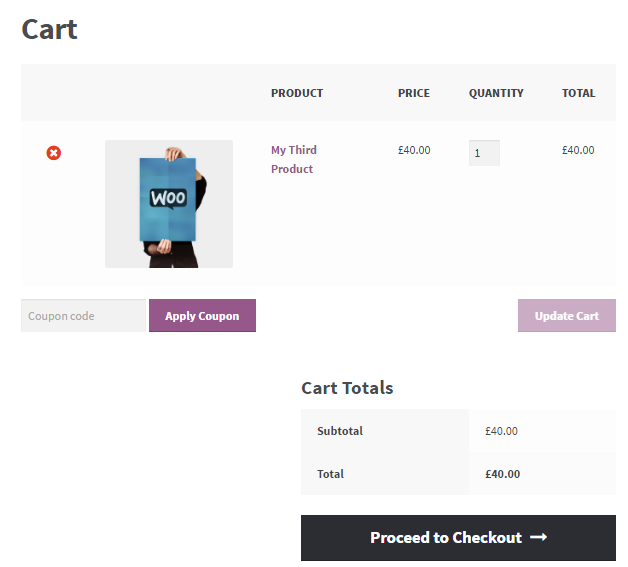
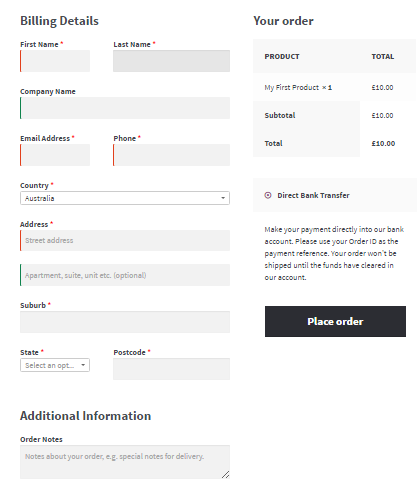
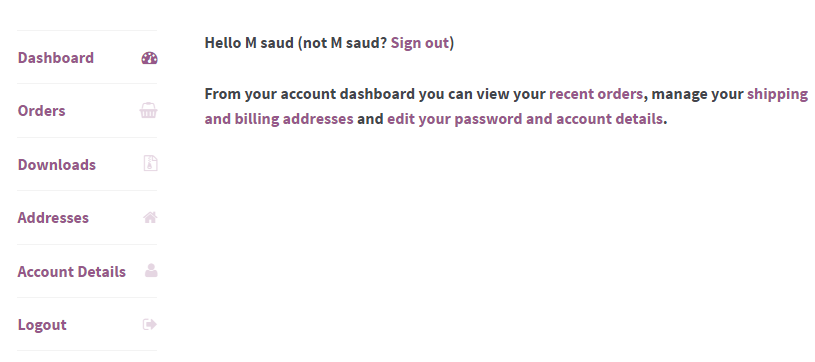
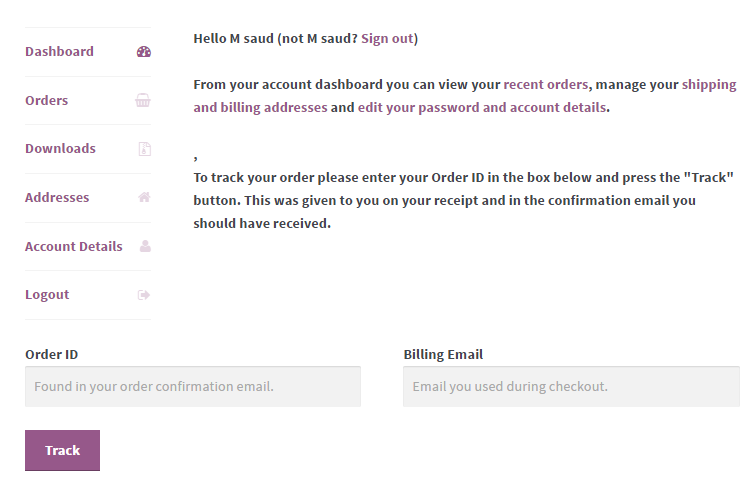
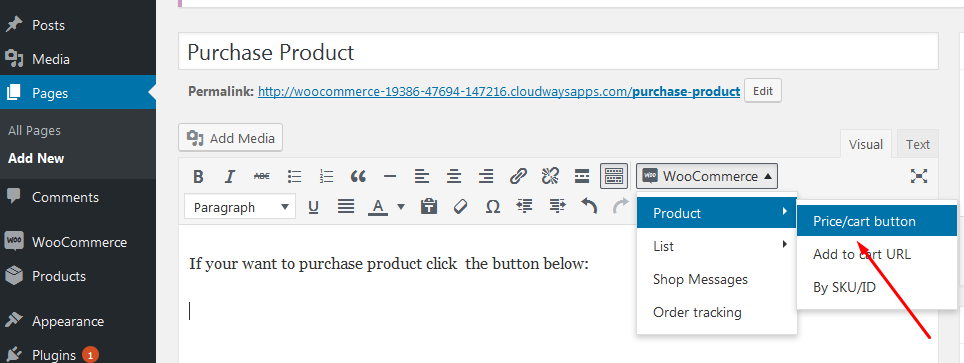
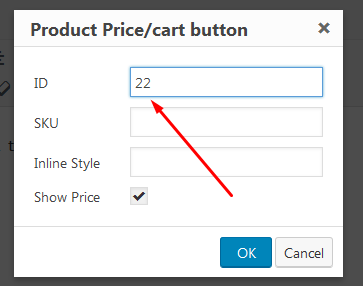
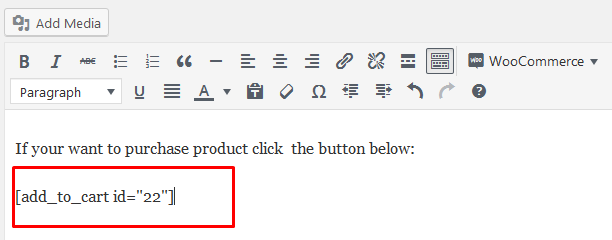
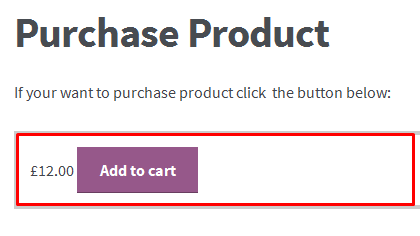
[related_products per_page=”9”] [top_rated_products pre_page=”9” Columns=”3” orderby=”date” order=”ASC”][best_selling_products per_page="12" columns="4" orderby="date" order="ASC"]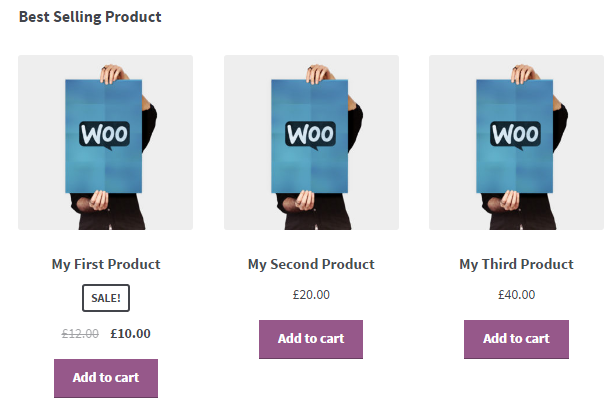
Your product categories will appear on any page when you use these two shortcodes. To display a grid of products from a certain category, you can alter its look using properties like orderby, limit, columns, and order, which can be used as:
[product_category]
To display all product categories, you can use this shortcode:
[product_categories]
Here are some attributes you may apply to this shortcode for the categories section:
‘number’ => ‘null’, – It indicates the number of categories.
“orderby” => “name”, – The parameters “name” and “date” are acceptable for this shortcode, which indicates the order.
“order” => “ASC “, – This shortcode indicates the “ASC” or “DESC” ordering of product categories.
‘columns’ => “3”,- This shortcode defines the number of columns used to arrange categories.
“hide_empty” => “1”, – This shortcode means Set to 1 to conceal categories that don’t have any products, or Set to 0 to reveal them.
‘parent’ => “, – This shortcode ensures that only top-level display categories are shown when set to 0.
‘ids’ => ” This shortcode demonstrates how to configure IDs to display specific outcomes.
‘number’ => ‘null’, – It indicates the number of categories.
“orderby” => “name”, – The parameters “name” and “date” are acceptable for this shortcode, which indicates the order.
“order” => “ASC “, – This shortcode indicates the “ASC” or “DESC” ordering of product categories.
‘columns’ => “3”,- This shortcode defines the number of columns used to arrange categories.
“hide_empty” => “1”, – This shortcode means Set to 1 to conceal categories that don’t have any products, or Set to 0 to reveal them.
‘parent’ => “, – This shortcode ensures that only top-level display categories are shown when set to 0.
‘ids’ => ” This shortcode demonstrates how to configure IDs to display specific outcomes.
orderby, order, per_page, and columns. The shortcode is as follows: [product_category category=”” orderby=”date” order=”asc” per_page=”20” column=”4”]
array(
'id' => '102',
'style' => 'border:4px solid #ccc; padding: 10px;',
'sku' => 'FOO'
'style' => 'TRUE'
'class' => 'CSS-CLASS'
)
[add_to_cart id="102"]
array(
‘id’ => ‘102’,
‘sku’ => ‘FOO’
)
[add_to_cart_url id=”102″]
If you’re experiencing difficulties with WooCommerce shortcodes, you can attempt the following basic troubleshooting methods to identify the root of the problem:
Bracket Problems: Verify whether [square brackets] are enclosing your shortcode. To prevent shortcode issues, for instance, use [products limit="4" columns="4" orderby="popularity"] rather than, (parentheses), or {curly brackets}.
Formatting Attribute Values: Verify that every attribute value is enclosed in quotation marks[” “]. Use: [products limit="6" columns="3" orderby="popularity"], for example, to avoid problems brought on by inaccurate formatting or quotations.
<pre> Tag Interference: Keep an eye out for <pre> tags near your shortcode since they could interfere with its operation. Eliminate any accidental tagging. For instance, refrain from putting shortcodes inside of <pre> tags.
WooCommerce and PHP Version Compatibility: Upgrade to the most recent versions of PHP and WooCommerce to fix compatibility issues. To properly support your shortcodes, for instance, make sure you have the most recent version of WooCommerce.
Custom CSS Impact: Check for rules in custom CSS files. woocommerce ul.products {display: none;} that can conceal content. Rule conflict should be changed or eliminated. For example, think about changing the CSS that controls the appearance of shortcodes.
Theme Discord: To find out if the problem is with the theme, switch back to the default WordPress theme. For help, get in touch with the theme creator if it continues. To test whether the shortcode functions without causing theme conflicts, try switching to a theme like Twenty Twenty.
Resolution of Plugin Conflicts: Turn off every plugin but WooCommerce to identify any possible problems. Find the incompatible plugin by turning on each one one at a time. Look for a replacement or get in touch with plugin creators for assistance. To find those that conflict, remove plugins and test each shortcode separately.
With the help of the robust WooCommerce shortcode, you can quickly add and show particular functionality and content on your pages and posts. Regardless of the kind of content you wish to show—products, categories, carts, checkout pages, etc.
Shortcodes are simple to add to any page or post by just entering them between square brackets; they don’t require any coding or technical expertise. Let us know if you have any queries about WooCommerce shortcodes in the comments section below.
To utilize shortcodes in WooCommerce, follow these steps:
Use these procedures to add a shortcode to your WooCommerce checkout page:
Use the shortcode [products] to see every product in WooCommerce. To show every product in WooCommerce, use the shortcode [products] as an example [products limit=”4″].
[woocommerce_product_stock] is the shortcode that displays the stock of WooCommerce products. As an alternative, you can use [woocommerce_product_filter_stock] as a live filter to see just items that are in stock or on backorder.

A full-service digital agency specialising in web design, development, brand identity, and digital marketing.
Kaysville, Utah, USA